

→ Want to keep your Google Ads audiences running without interruption? See how ROiBest PWA works — no submission, no cut, 1.2x installs.
Google is forcing another infrastructure change on advertisers — and this one cuts close to the bone. Starting in 2026, the legacy Customer Match upload workflow is being retired in favor of the Data Manager API. If your team runs Google Ads campaigns targeting custom audiences, you have until the deadline to migrate or watch your Customer Match audiences go dark.
This isn’t a minor backend tweak. The Data Manager API changes how first-party user data is uploaded, matched, and maintained against Google’s identity graph. For Android app teams — especially those distributing via PWA instead of Google Play — this migration determines whether your remarketing pools survive or evaporate.
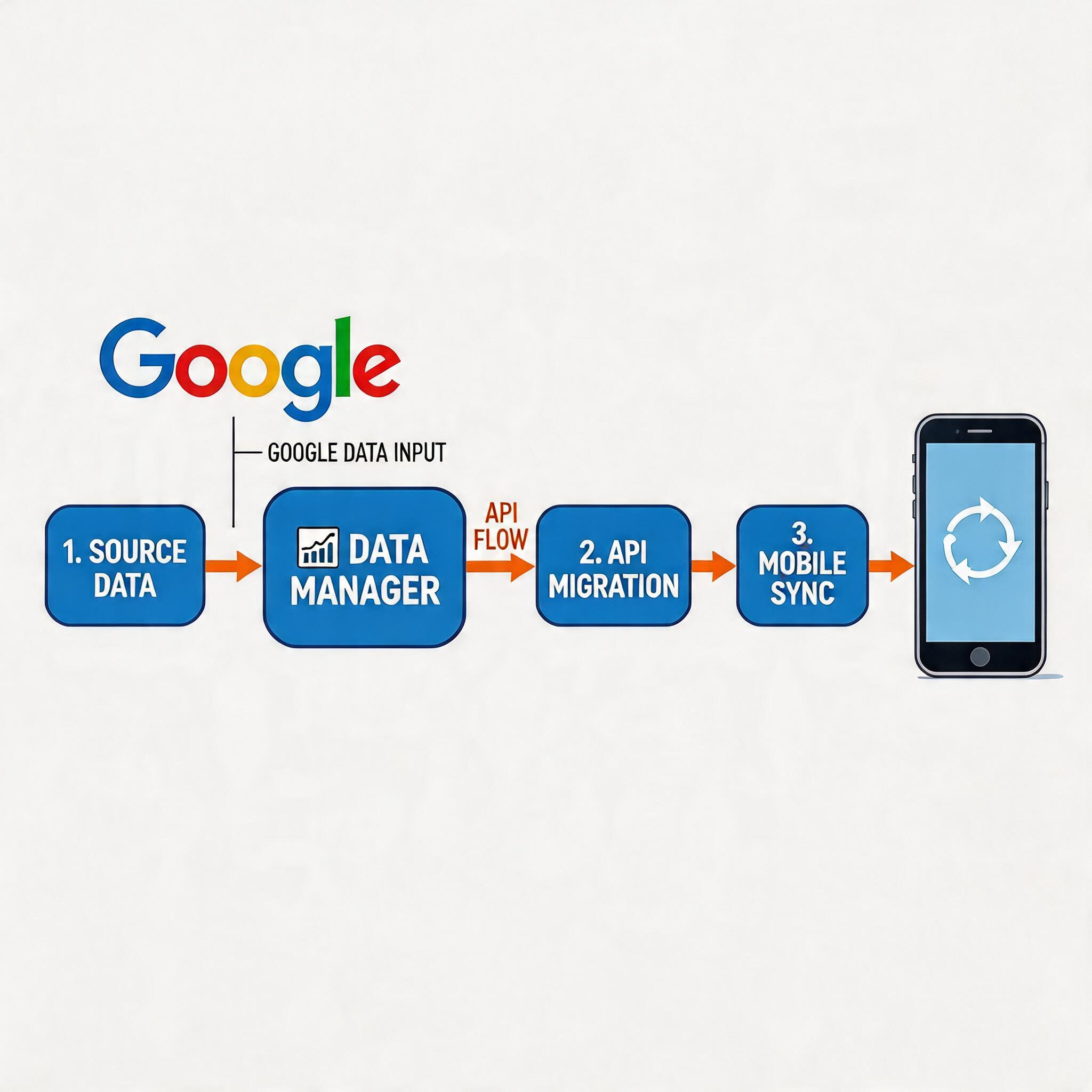
Here’s exactly what the migration involves, and the four steps your team needs to complete before the deadline.
What Is Google Data Manager (And Why Google Forced This Change)
Google Data Manager is Google’s unified interface for managing first-party audience data across the Google Ads ecosystem. It replaces the fragmented legacy Customer Match upload flows — which required separate API keys, different upload endpoints depending on the campaign type, and manual matching controls — with a single, standardized API layer.
The forcing function here is privacy regulation and browser policy. Google is consolidating all first-party data handling under Data Manager to enforce stricter consent-gating, improve match quality, and give advertisers a cleaner audit trail for compliance with GDPR, CCPA, and the incoming EU AI Act requirements. Legacy Customer Match uploads, which allowed raw email/hashed-email batch uploads without an explicit consent checkpoint, are being retired because they can’t meet the new standards.
For Android PWA teams specifically, the Data Manager API migration matters because:
- Your remarketing audiences — users who installed your PWA — are maintained as Customer Match audiences in Google Ads
- If you run UAC or PMAX campaigns driving PWA installs, your conversion tracking depends on these audiences being live
- Audience suspension during migration means your campaign optimization loses its historical signal — exactly when you need it most
Google’s own documentation puts it bluntly: “After [deadline], Customer Match uploads through legacy interfaces will fail validation and audiences will stop refreshing.” That’s not a warning — it’s a countdown.
The 4-Step Migration: What Teams Actually Need to Do

Most “migration guides” Google publishes are written for enterprise brands with dedicated data engineering teams. Here’s the version for execution teams running Android PWA campaigns with lean ops.

Step 1: Audit Your Current Customer Match Data Sources
Before touching the API, you need to know what you’re migrating. Open Google Ads → Audience Manager → Customer Audiences. Document every active audience built from:
- Email lists uploaded via the legacy bulk upload interface
- CRM-based audience sync connected via the old Customer Match API
- App user lists matched through your install tracking pixel
For PWA teams, the critical question is: which of these audiences feed your Google Ads campaigns? If you’re running UAC campaigns with “Target similar audiences” or “Remarketing” optimization, you need every one of those audiences migrated — not just the ones that look “big.”
Export the audience lists with their current member counts, match rates, and which campaigns they’re attached to. You’ll need this as your baseline for verification after the migration.
Data point: According to Google’s own migration documentation, teams that skip the audit step discover after migration that 15-30% of their smaller remarketing audiences (< 1,000 members) silently dropped because they fell below Google's new minimum match thresholds. Don't be that team.
Step 2: Register Your App or Service in Google Cloud and Enable Data Manager API
The Data Manager API lives inside Google Cloud, not inside the Google Ads UI. Your team needs to:
- Log into the Google Cloud Console with the same Google account that manages your Google Ads data
- Enable the “Google Merchant API” — wait, no, that’s Shopping. The correct API is Google Ads API v17+ with Data Manager scope enabled
- Generate new OAuth 2.0 credentials (client ID and secret) specifically for Data Manager
- Grant the new credentials the
https://www.googleapis.com/auth/adsservicer.datamanagerscope
If your team already uses the Google Ads API for conversion tracking or script automation, you’re partially familiar with this flow. The key difference: Data Manager credentials are separate from standard Google Ads API credentials and require a separate scope acceptance in the Google Cloud consent screen.
Common failure mode: Teams reuse existing Google Ads API credentials and wonder why Data Manager calls return 403. The scopes are different. New credentials, new scope, full stop.
Step 3: Update Your Audience Sync Workflow to Use the Data Manager API
Your current Customer Match workflow probably looks something like: CRM export → hash emails → upload CSV to Google Ads UI (or POST to legacy endpoint) → audience builds over 24-48 hours.
Under Data Manager API, the workflow changes:
- Your data source (CRM, marketing automation tool, or custom PWA backend) sends a signed, consent-verified user list to the Data Manager API endpoint
- Data Manager handles the hashing, matching, and audience refresh — you no longer hash client-side
- Audience refresh cadence moves from manual/batch to event-driven or scheduled (you configure the interval in Data Manager settings)
- Match quality feedback loops are now available via the Data Manager dashboard, showing you match rates by data source
For PWA teams, this is actually an improvement — if you were managing your install tracking data manually, Data Manager gives you a cleaner, more auditable pipeline. If you’re using a MMP (Mobile Measurement Partner) like Adjust, AppsFlyer, or Branch to manage your PWA install events, check whether they’ve released Data Manager API connectors. Most major MMPs announced support in Q1 2026.
Important: Consent records must now accompany every data upload. If your PWA doesn’t have a proper consent mechanism for European users, you need to implement one before migrating — Data Manager validates consent flags and will reject batches from regions requiring explicit opt-in if consent documentation is missing.
Step 4: Verify Data Flow and Monitor Match Quality Post-Migration
You’ve migrated. Audiences are showing green in the Data Manager dashboard. You’re done, right? Not quite.
The 48 hours after migration are the critical window. Monitor three things:
- Audience size: Has your remarketing pool maintained its member count, or has it shrunk? A drop of more than 10% warrants investigation.
- Match rate by source: Data Manager shows match rates per data source. If one source dropped from 85% to 55%, something went wrong in the upload schema.
- Campaign performance: Watch your CPA and conversion volume on UAC/PMAX campaigns. If you see an abrupt CPA increase in the 72 hours post-migration, your audience suspension window likely hit during a campaign learning phase — which means the algorithm was optimizing against a shrinking pool.
Set up a monitoring dashboard in Google Data Manager to alert you if any audience falls below your defined minimum threshold. This is configurable in the Data Manager settings — do it now, not after you discover an audience went dark.
Why Android PWA Teams Are More Exposed Than Native App Teams
Native Android app teams have Google Play Install Referrer and Play Console audience tools as fallbacks. If their Customer Match audiences go dark temporarily, they have alternative attribution and remarketing paths.
PWA teams don’t have that luxury. Your install tracking lives entirely on your web stack and MMP. Your remarketing audiences are built from your PWA user base, maintained through Customer Match/Data Manager. If those audiences suspend or degrade during migration:
- Your PMAX campaigns lose their remarketing signal, and the algorithm has to re-learn conversion patterns from scratch
- Your lookalike audiences (built from Customer Match pools) stop refreshing, which means your new customer acquisition starts targeting stale data
- Your DDA (Data-Driven Attribution) models lose historical touchpoints during the audience suspension window
For teams running Google Ads + PWA as their primary distribution channel, Customer Match isn’t optional infrastructure — it’s the foundation of your remarketing engine.
If you want to reduce your dependency on this fragile remarketing chain entirely, the alternative is PWA distribution with ROiBest: direct install links, no app store dependency, no Customer Match required for your core install base. Your user acquisition runs through web traffic, your retention runs through web push — and Google’s infrastructure changes stop being existential.
What Happens If You Miss the Deadline
Google’s official position: legacy Customer Match uploads will fail validation after the deadline. Existing audiences won’t be deleted immediately, but they stop refreshing. That means:
- New users from your data sources won’t be added to existing audiences
- Audience sizes will decay as unmatched users expire from the pool
- Campaigns optimized against those audiences will gradually shift to broader targeting, often at significantly higher CPA
The recovery path after missing the deadline is to complete the migration and request audience restoration through Google Ads support — but restoration is not guaranteed, and the campaign performance gap during the suspension window is unrecoverable.
Summary: Your Migration Checklist
- Audit: Document every Customer Match audience and which campaigns depend on it
- Register: Get Data Manager API credentials in Google Cloud with the correct scope
- Migrate: Update your data sync workflow to use Data Manager API with proper consent handling
- Verify: Monitor audience sizes, match rates, and campaign performance for 72 hours post-migration
The migration window is open now. The cost of waiting is higher than the cost of doing it today.
Skip the app store. Go live instantly, keep 100% of your revenue.
ROiBest helps Android app teams launch PWAs — no review process, no 30% Google Play cut, and push notifications that work even after uninstall. Teams see up to 1.2x higher install conversion rates vs native app downloads.


发表评论